Whether you want to automate workflows or capture data from paper documents, our range of process automation solutions – combined with our can-do attitude to mapping out your processes – enable you to automate manual tasks, reduce manual data entry and modernise your organisation.
Working with leading authors, we build bespoke automated data capture and business process management solutions based on solid, well-supported products to help you optimise operations, improve productivity, accelerate growth, and meet regulatory requirements. Our process automation solutions include:
From simple ad-hoc departmental workflows to full enterprise business process management, we bring order to complex processes.
At ePC, we spend time with you to understand what problems you are trying to solve, what the current “As Is” process is and what your “Future” desired state looks like.
Once we have mapped out your process(es), business process management software (BPMS) is used to implement your perfect solution.
Our eForms platform enables you to build rich, dynamic and secure electronic forms that work and behave in an intuitive way.
Platform features include real-time data validation, user authentication, automated notifications, workflow automation, dashboard reports, audit trails for regulatory compliance, and much more.
Whether you need to migrate from paper to an electronic form or want to get online as quickly as possible, we can build a bespoke eForm to meet your needs.
Although simple data capture processes may consist of electronic forms with data exports, it is often necessary to pass form data from one participant to another for authorisation, review or other action.
Our low-code BPMS platforms include point-and-click workflow engines to graphically model and execute your business process(es).
This allows you to automate your organisation - reducing the load on your users while adhering to corporate policies and compliance regulations.
Automatically capture, read and extract data from paper forms using OMR, ICR, OCR, and barcode recognition technology.
Our automated data capture solutions reduce manual data entry by 90% or more with human intervention minimised to a few keystrokes.
Collect more accurate data faster with fewer resources.
Our UK-based and operated document scanning services service offers organisations access to document scanning equipment and the latest forms processing software.
The service is designed for organisations with quick turnaround, low-frequency data capture projects.
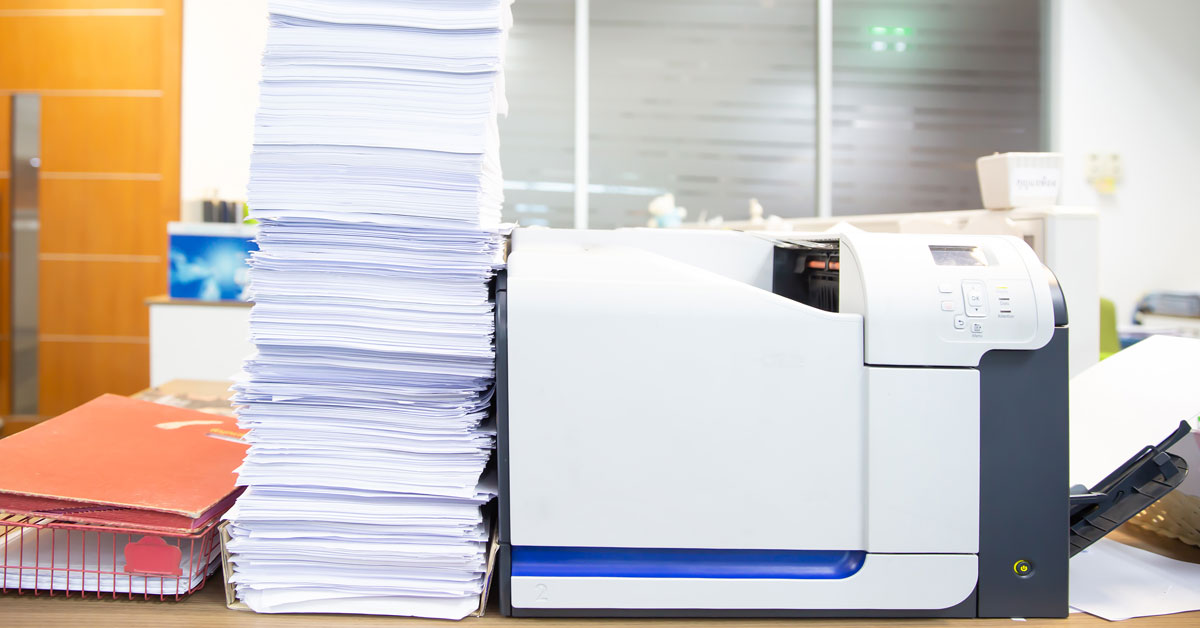
If you have a backlog of paper, or an infrequent need to capture data from forms, we have the resources to help.
We are a solutions partner you can trust. Our focus is on delivering scalable solutions and nurturing long term relationships rather than selling boxed software and hitting quarterly sales targets.
When you work with us, we spend time with you to understand the problems you face before searching our toolbox to find - or create – the best process automation solutions to solve your unique challenges.
Trust a company with decades of industry experience to get up and running quicker - with less reliance on internal resources.


With eForms, the accuracy and timeliness of data collection has improved immeasurably. This was not possible with paper and means we can begin analysis much quicker to establish if the FIT can accurately detect colorectal cancer in patients.
Monica Haritakis, Clinical Trial Manager, York Teaching Hospital NHS Foundation Trust
We are certified resellers of BP Logix Process Director and ABBYY FlexiCapture as well as OpenText OEM partners specialising in TeleForm and LiquidOffice.

TeleForm automatically captures and indexes data and images from any form type, using handprint (ICR), machine print (OCR) and checkbox (OMR) recognition technology, ready for export to a database.
It aims to reduce manual data entry time by 90% or more and can eliminate hundreds of operator keystrokes.

BP Logix Process Director is an award-winning no\low-code BPM platform for creating rich digital applications.
Dynamic dashboards, powerful eForms, advanced workflows and extensive reporting combine to deliver a comprehensive business process management solution.

ABBYY FlexiCapture is a highly scalable forms processing solution for intelligent and accurate extraction of data from structured, semi-structured and unstructured forms and documents for input into backend applications for further processing and archiving.
Fully web-based, LiquidOffice is a BPM software solution for creating, deploying and automatically managing the routing, tracking and approval processes for electronic forms. It encompasses the entire business process management lifecycle, from process design and workflow simulation to deployment and optimisation.

Automation of the bonus timesheet has been a major step forward. In the past, it took one-person 2½ days a week to manipulate the data and manually key the information into payroll. We’ve reduced this time by almost two days already, but we anticipate further efficiencies in the next phase...
Richard Churchill, Productivity Support Manager, Next Distribution Ltd

Millennium and Copthorne (M&C) Hotels Plc manage CapEx requests with cloud-hosted capital expenditure approval and tracking software.

The Health and Safety Executive (HSE) use LiquidOffice to capture data and manage the automated workflow of up to 200,000 RIDDOR submissions a year.

Following a OJEU tender process, the British Council commissioned Civica as the prime contractor to deliver an on-screen marking (OSM) solution to mark up to 2.25 million ‘pen and paper’ IELTS tests each year.
As part of the agreement, Civica appointed ePC as its sub-contractor for the script capture, processing and verification work.

Reading School release exam results faster by outsourcing OMR scanning to ePC's document scanning bureau.

Keele CTU saves time by capturing data from paper-based clinical trials with TeleForm.

Rentokil Initial automate CapEx approval processes in Europe, Asia, Latin America and the USA with Process Director.

Based at the University of Bristol, the ‘Children of the 90s’ study uses TeleForm to capture data from the paper versions of their questionnaires.

Expert in language assessment automates paper-based assessments with OMR exam processing and on-screen marking system.

MMS save 37.5 hours per week and reduce manual data entry by 80% with TeleForm based timesheet automation system.

I also want to thank you for your excellent service and support this year, it is always much appreciated and you are a valued supplier.
Technical Analyst, Cambridge University Press & Assessment
The implementation has been a smooth process. ePC have been really helpful throughout the project. They were able to offer advice when designing / planning the eCRF and help us iron out challenges before they became major issues. Their advice has really helped us focus on what data we needed to collect in order to meet trial objectives and regulatory requirements. I highly recommend them to other CTU’s seeking to implement an eForms system.
Monica Haritakis, Clinical Trial Manager, York Teaching Hospital NHS Foundation Trust
Teleform/ePC have been the lynchpin of data collection in our home diagnostic clinical trials for many years. As a small team, the software has given us cost-effective and flexible control to manage a diverse range of paper-based trials using a fully-featured form designer with support for downstream verification workflows all the way to export, while ePC have been instrumental in managing and maintaining the service availability with a high standard of professionalism and technical capability
SPD Swiss Precision Diagnostics GmbH
As an IT support group, we offer our business colleagues choices. The decision to select Process Director/Cloud Edition was made by the Divisional CFO, as the prototype of the CapEx process worked to his satisfaction. From an IT perspective we were also genuinely pleased with the pilot
Chris Broe, Group Chief Information Officer, Rentokil Initial
Designing, processing and analysing thousands of questionnaires a year requires an effective and efficient data capture system. TeleForm, provided by ePC, has been the central hub to this system for many years - we could not function without it.
Sue Thrower, RAF Cranwell
ePC understood what we wanted. On a number of occasions, we described roughly what we would like in terms of capability but not in any great detail. They captured the simplicity of what was required without compromising on functionality.
Nick Taylor, Finance Director, Millennium and Copthorne Hotels Plc
We were mindful of the CapEx – and product creation – systems ePC had implemented and aware they worked well. In the end, the system had a lot of ticks against it and we did not see the value of going to another supplier when ePC had a box of tricks that worked well for us.
Robert Woods, Finance Manager, Initial

Process Director

4.7 / 5 | 27 reviews

Process Director
4.5 / 5 | 30 reviews
TeleForm
4.5 / 5 | 2 reviews

Process Director
4.6 / 5 | 16 reviews